KnowledgeCity

PowerPoint 2010 Introduction

Add graphics, themes, and media clips to your presentations.
Preview the first lesson free — get full access to all 47 lessons.

To view this video please enable JavaScript.

Course: On-Demand
Beginner  Provider Arlene Paraiso  6 chapters ·  47 Lessons ·  2h 17m  in Arabic, English, Spanish 

Course Description

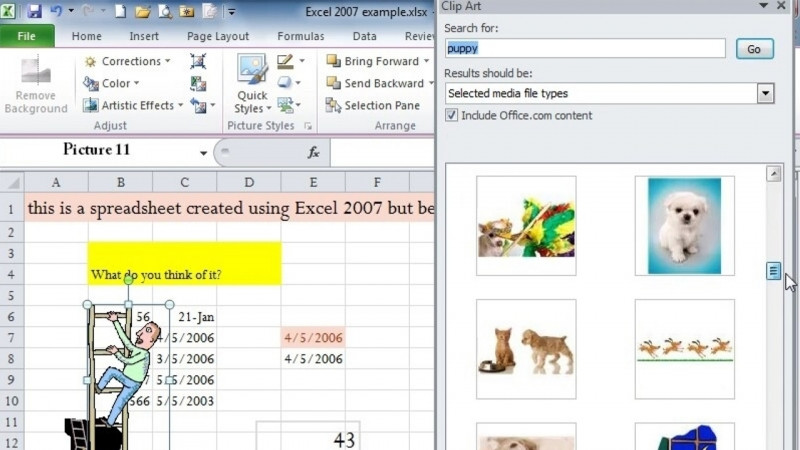
Discover how to create customized presentations designed to impress your audience. Use the Office button and ribbons to navigate PowerPoint 2010. Design your presentation layout with headers and footers, apply themes, and format text. Learn how to add tables, shapes, Clip Art, SmartArt, and media clips of video and audio to effectively enhance your message.

What You'll Learn

  • Navigate PowerPoint 2010 using the Office button, ribbons, File tab, Mini Toolbar, and Quick Access Toolbar
  • Design presentation layouts with headers and footers, apply themes, and format text
  • Enter and manage slide text using placeholders, bulleted text, and the 7x7 Rule
  • Add tables, shapes, Clip Art, SmartArt, and video and audio media clips to enhance presentations
  • Work with outlines and the outline/slide relationship to build and organize slide content
  • Build presentations using Normal view, Slide Sorter view, and Slide Show view, then save and close your work

Key Takeaways

  • PowerPoint 2010 is navigated through the Office button, ribbons, buttons, the File tab, the Mini Toolbar, and the Quick Access Toolbar.
  • Presentation layouts can be customized with headers and footers, themes, and formatted text.
  • Slide text is entered through placeholders and bulleted text, guided by the 7x7 Rule.
  • Presentations can be enhanced with tables, shapes, Clip Art, SmartArt, and video and audio media clips.
  • The course covers building presentations and viewing them through Normal view, Slide Sorter view, and Slide Show view before saving and closing.

Frequently Asked Questions

What does this PowerPoint 2010 Introduction course cover?

It covers creating customized presentations, navigating PowerPoint 2010 with the Office button and ribbons, designing layouts with headers, footers and themes, formatting text, and adding tables, shapes, Clip Art, SmartArt, and video and audio media clips.

Will I learn how to add visual and media elements to my slides?

Yes. The course teaches how to add tables, shapes, Clip Art, SmartArt, and media clips of video and audio to enhance your message.

How do I enter and format text on slides in this course?

You learn to enter slide text using placeholders and bulleted text, apply the 7x7 Rule, work with text and outlines, and format text within your presentation layout.

What viewing and file options does the course teach?

It covers viewing slides through Normal view, Slide Sorter view, and Slide Show view, working with new and existing presentations, resizing Normal view panes, and saving and closing presentations.

What skills are associated with this course?

The course relates to Microsoft PowerPoint, Adobe Presenter, PowerPoint Animation, Presentation Graphics, Presentation Design, and Presentation Software.