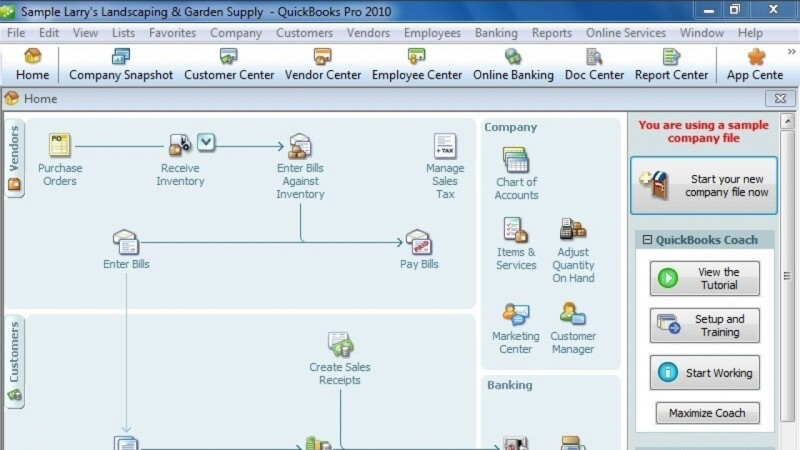
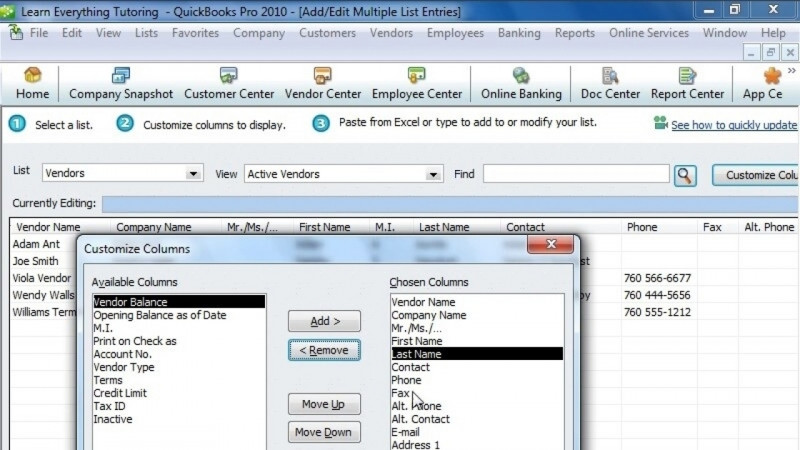
You. Hello. My name is Takisha Strong. In these lessons, you will learn how to track time and process payroll. Using QuickBooks Pro 2022, we will walk through how to set up payroll, how to manage time tracking, how to process payroll, run payroll reports, and manually enter payroll data from an external payroll provider. We will use our sample product based company, Rockcastle Construction, for the lessons. Let's get started. Before we walk through the options, keep in mind that payroll processing may be a separate service depending on the needs of your company. If interested, there are a few ways to add this paid subscription, including the shortcut at the bottom left hand of your screen that says Turn on Payroll. In these lessons, however, we will only walk through the unpaid options to manually process Payroll using QuickBooks Pro 2022, select Edit and Preferences from the main menu under Payroll and Employees, select the Company Preferences tab in the first section of the form label. QuickBooks Desktop Payroll features there are only two options that do not require a paid subscription. Of course, the first is no payroll at all, and the second will be Manual Payroll. If you leave your option toggled at full Payroll without selecting this checkbox, or if you change it to Online Payroll, you will be prompted to select a paid subscription. Let's press manual payroll to continue. Select Next. QuickBooks will remind you that all payroll calculations are the responsibility of the company. Select activate to continue. In the next portion of the form, we can set preferences for the pay stub and Vouchers and stick and vacation pay. Under Pay Stub and Voucher Printing, you can select if the employee or company address are included and if the pay period is included in the checks memo. You can also go through the options below to decide what other items will be available to print, including how vacation and sick pay will be labeled on the stub. You can even decide if the Intuit logo will be included on your pay stubs. In the next section, you can decide how sick and vacation time will accrue for your employees. They can accrue at the beginning of the year. The accrual period can be every paycheck or every hour on the paycheck. You can decide if the hours are accrued at the beginning of the year, if any at all, and the maximum number of hours to accrue for the entire year. You can set the accrual limit for maximum hours at a time or maximum hours for the year, and you can decide if you want to reset the hours each year. Lastly, you can decide whether or not to accrue vacation and sick time based on vacation and sick hours paid and based on overtime hours paid. In the next sections, you can decide if you want to copy earnings details from the previous paycheck. Recall the quantity or hour fields on the paychecks. If you're using Job and Class tracking if that information will affect any paychecks. If you want to assign the class based on the entire paycheck or just an earnings item, and then how the employee information will display on the check for the last option related to displaying the employee's Social Security number, please be sensitive to your obligation to protect your employee's sensitive personal information prior to selecting this box. Now, before we take a look at the payroll center, I want to bring your attention to some other things that you may want to consider before you attempt to process payroll. First and foremost, you need to set your payroll schedules. Under the employees menu. You can select, add or edit payroll schedules for Rockcastle Construction. They have one schedule set at bi weekly. If you'd like to add a new schedule at the bottom, select Payroll Schedule and New. You can determine the title for this additional payroll schedule. The frequency meaning daily, weekly, another biweekly semi monthly, monthly, quarterly or annually. The end date of this specific pay schedule and the date that should appear on the paychecks for this pay period, heading back over to the main menu for employees. If you need help with setup, you can also use this Payroll Setup menu that will walk you through all details related to payroll setup. This is even available for manual payroll. Another option to consider is that you may want to use payroll updates for any items that need to be updated within your QuickBooks file. Lastly, we'll use the payroll taxes and liabilities and the payroll tax forms and w two options within the menu to handle your responsibilities to pay in those liabilities that have been withheld from your employees and the employer portion of the liabilities, and to process any quarterly and annual tax forms for the company and for the employees. Now, let's head over to the Payroll Center to take a look at all of the options together. The Payroll Center gives you a one time or snapshot view. For example, you can have a shortcut to your full employee list. The Transactions tab will show you all payrolls that have been processed by employee name. In this case, for the calendar year, you can look at all liability checks, adjustments, year to date adjustments, and non payroll transactions. Under the Payroll tab, in employees, you can create paychecks, see Recent Payrolls, address your payroll liabilities, see your payment history, and also file any payroll forms if necessary. In the top portion. You'll also have buttons to navigate to time tracking. Understand if there are any payroll updates needed to your QuickBooks file. A shortcut to the payroll items which we'll look at in just a moment. A shortcut to Payroll setup, a shortcut to the preferences, and then any support or help needed. Let's take a look at payroll items. Something else that will be needed before you're able to process your payroll. The individual payroll items address all options that are needed for the payroll stub or the form. You can pay your employees by salary, hourly wages and include differentiations between those commissions, bonuses, miscellaneous additions and miscellaneous deductions such as mileage reimbursements, cash advances, repayments for those cash advances, company contributions such as workers compensation or retirement. Additions federal tax requirements such as earned income credits, unemployment withholding Medicare withholding similar options for your state and then other taxes that may be needed according to your particular jurisdiction. Finally, you can add a direct deposit line item to show on your pay stub. To add additional payroll items, select Payroll Item at the bottom of the screen and New You and the Setup screen will help you to add any additional items that you may need for payroll. Remember, if you have questions regarding any of these types of items, please contact your HR professional. In the next lesson, we will walk through time tracking and how to process payroll. Thanks for watching.