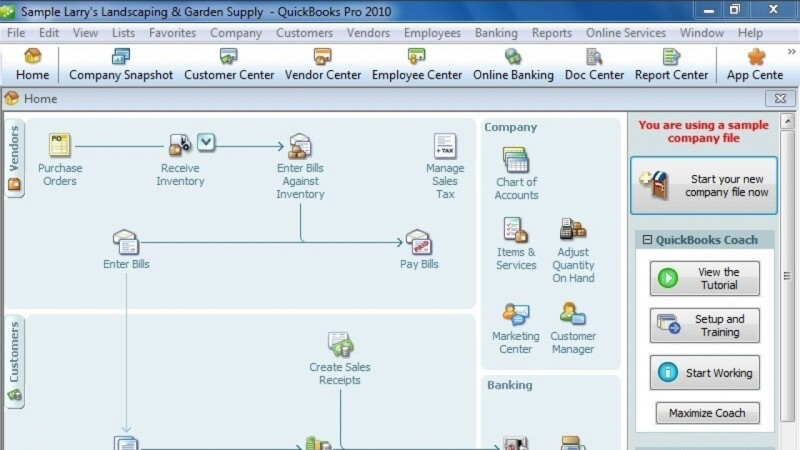
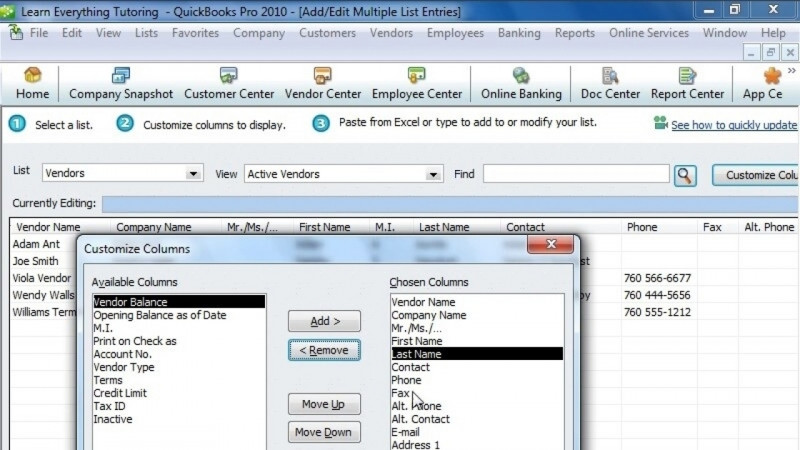
Hello, my name is Tequisha Strong. In these lessons, you will learn the differences between Intuit's QuickBooks Desktop and Online Software Applications, some common add-ons and integrations used with QuickBooks Online, and its newest updates. Let's begin with comparing and contrasting the Desktop and Online versions of QuickBooks. QuickBooks is one of the leading accounting software applications available in the consumer market. The software is available in two formats, Desktop and Online. The most obvious difference between the two is the Desktop format as installed on your computer or in a remote server environment. And QuickBooks Online or QBO is cloud-based. Both versions have a mobile app and both are subscription-based. For the Desktop version, you'll pay an annual subscription fee while you'll pay monthly for QBO. Each application version has multiple subscription levels with additional features available at each increasing level. Let's start with Desktop. Here's a sample screen from one of the Desktop versions of QuickBooks. The two subscription levels for 2023 are Premier and Enterprise. One of the main features of the premier subscription level includes the ability to tackle between different industry-specific type versions of the software. You'll see we're now viewing the general business version. You also have the Accountant Edition, which allows you access to all versions. You can subscribe to the Contractor, Manufacturing and Wholesale, Nonprofit Edition, Professional Services, or Retail Edition of the Premier Subscription Levels. You'll see QuickBooks Pro here, however, as of 2023, the pro subscription levels have been discontinued. They are only available to those users that currently subscribe to QuickBooks Pro and wish to renew their subscription. Companies with the most complex accounting systems may choose the enterprise-level subscription. They gain access to advanced inventory tracking and also over 50 additional reports that are available in the report center. Let's start by taking a look at the desktop view of the workflows and the navigation on this page. You'll see there are three workflows, vendors, customers, and employees, along with the types of transactions that affect each workflow. You'll also have a company section of your home page and a banking section. Along the side, you'll have common shortcuts, which can be customized, along with the full menu for all options along the top. On the Insights tab, you'll see you have some key performance indicators or graphs available related to the sample company, for example, a profit and loss view, a detailed view of income, along with any paid and unpaid invoices, and a graphical view of your expenses. Let's compare this information to the views on QuickBooks Online. Here is a sample company view of QuickBooks Online. You see the home page or workspace is also separated into workflows. However, in QBO, the workflows are not by individual type, such as vendors, customers, employees, but instead we have money in, money out, and then accounting and reports, along with the transactions that would affect each of these. Along the side, we have our main menu instead of shortcuts, where we can also divvy down into additional options related to each menu. Instead of the Insights tab, we have a Business Overview tab. You'll see that the Business Overview tab is similar to the Insights tab on QuickBooks Desktop, but with a bit more information. Both views can be customized. In QBO, you have a cash flow forecast. Similar to Desktop, we have profit and loss, expenses, open invoices, and an overall sales summary. But we also have a quick snapshot view of all of the company's bank accounts. Now, let's talk about the subscription levels. We had two annual subscription levels available in the Desktop version. However, with QBO, you have five to choose from. The first subscription level with QuickBooks Online is called the Self-Employed Subscription Level. This option is the lowest available in caters to the small business owner that only needs an accounting software package to handle income, expenses, and reports. Self-employed is the lowest subscription level available within QBO. It's geared towards the small business owner that only needs accounting software to handle income, expenses, and receipts. Also, this is the only level available that allows the user to add on items such as tax preparation. The next four subscription levels are Simple Start, Essentials, Plus, and Advanced. We'll be using QBO Plus for this course. You can see on the table the different options that are available with each level, whereas with Simple Start, in addition to the income expenses and receipts, you'll also be able to send out invoices and accept payments from your customers, track tax deductions, receipt general reports, track knowledge, track cash flow, sales and sales tax, provide estimates, add contractors, and attach one sales channel integration to the file. With the essential subscription level, you can add additional users to the file, manage bills from your vendors, and add time if you'd like to begin to process payroll. On the Plus subscription level, in addition to Essentials, you'll be able to track inventory and track the profitability of individual projects. Advanced is the most comprehensive subscription level available. With the most number of GL accounts available, you can have more than five users, manage your bills, enter time and inventory, and you'll also have business analytics, track employee expenses, batch your invoices and expenses, customize your access based on the user, along with other premium details. Now the other difference to note between QuickBooks Online and the desktop environment is that with the desktop environment, you'll have to transfer what's called an accountant's copy if you wanted to collaborate with an accountant on the file. Once you transfer that accountant's copy to your external accountant, the user will no longer be able to adjust any transactions prior to that accountant's dividing date. However, with QuickBooks Online, you can actually add additional users as experts and invite an accountant or other users to work on the file simultaneously, which allows them to view all data in real time. In the next lesson, we'll show you common add-ons and integrations that can be used with QuickBooks Online. Thanks for watching.