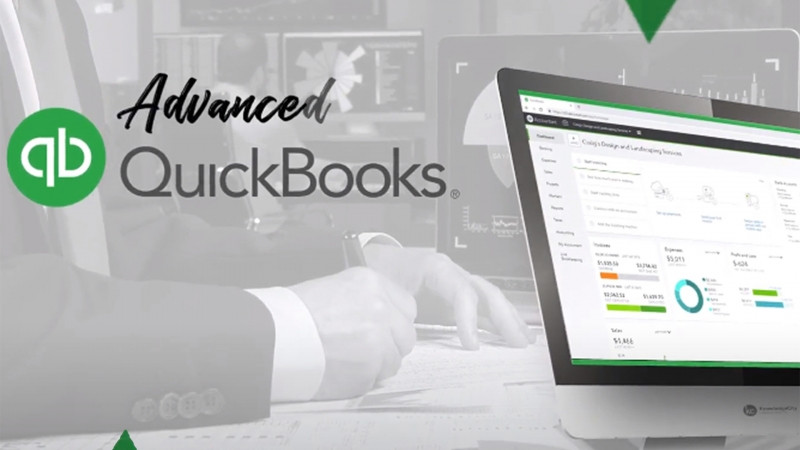
Hello, my name is Tequisha Strong, and these lessons we'll be getting started with QBO. We'll use our sample company, Kreg's Design and Landscaping Services to understand QBO workflows and to learn how to navigate through the QBO menus. Let's get started. On your home page or main workspace, you'll see that the activities are separated into three different workflows. Money in, money out, and accounting and reports. Let's go through each of the tiles to see the screens related to the workflows. As suggested, the money in workflow relates to our customers and the invoices that we bring into the company. The money out workflow relates to our vendors and employees or our expenses related to doing business, and the accounting and reports brings it all together. The first tile and money in is add products and services. This screen gives us a full list of all of the products and or services that a company may offer to its customers. If you select New at the top right menu, you'll see that you can add inventory items, non-inventory items, services, or collection or bundle of the above. QuickBooks will also tell you if you are in low or out of stock for any of your inventory parts, if your file is set up to track the quantity on hand. Let's head back to our workspace. The next option is to manage customers. This screen gives us a full list of the customers that we've added to the file. Along the top of the dashboard, you'll also see if there are any open estimates, a total of any un-built activity, along with how many items relate to that total un-built activity, overdue invoices, how many invoices are open along with the corresponding total, and how many invoices have been paid within the last 30 days. By selecting any of these options, you can drill down to see the invoices or estimates that comprise the total. Let's head back to our workspace. The next two buttons are creating estimates or sending invoices. Let's take a look. Creating an estimate is when you want to provide your customer with an estimate of how much the goods or services that you're providing to them may cost. You'll choose the customer's information, such as their name and email address. Their billing information will automatically populate. If you'd like to track the details by a tag or particular grouping, you can enter that here, and then populate the estimate with the product or service that you're providing to your customer. Let's head back to the workspace. The next option is to send invoices to customers. On this screen, you'll see all of the open invoices, those that are overdue, those that are not yet due, invoices that have been paid within the last 30 days but not deposited into the company's account, and those that have been deposited. And below, you'll see the detail of the information noted above. If we go back to our workspace, we'll see that a few of the items have the warning sign. Because we're in a sample company, that just means that we aren't unable to actually view this information because it would deal with real bank accounts. So for example, we cannot receive a customer payment from the screen or apply for funding, but these transactions would all affect money coming into the business. The next workflow is money out. Here is what we'll see any open bills that need to be paid. We'll see we have five open bills. At the top, we can choose the account to pay the bills, the payment date, select filters, note the payees of those bills that need to be paid, reference numbers if any, corresponding due date, the open balance for that vendor. If any credits have been applied, select the amount we want to pay, and then note the total amount and schedule a payment online. Heading back to the workspace, you'll see the next two options and money out is to track time for employees or manage payroll for employees if you choose to pay for this additional service through Intuit. Lastly, we have our accounting and reports workflow. You can get business banking, review transactions that need to be approved, leave reports and trends, manage taxes, or connect with a bookkeeper or professional. Let's take a quick look at the options available under review transactions. If your company has integrated with the company's bank account, you'll see items for review on this screen. Similarly, if you have any apps integrated with your company account and some of those transactions need reviewing or adding to the file, you'll be able to see it on this screen. Next, you'll have any open receipts from your customers that have been downloaded to the file, any sales transactions needing action, and any expense transactions needing action. And the next lesson will begin to walk through how to navigate through all of the different QBO menus. Thanks for watching.