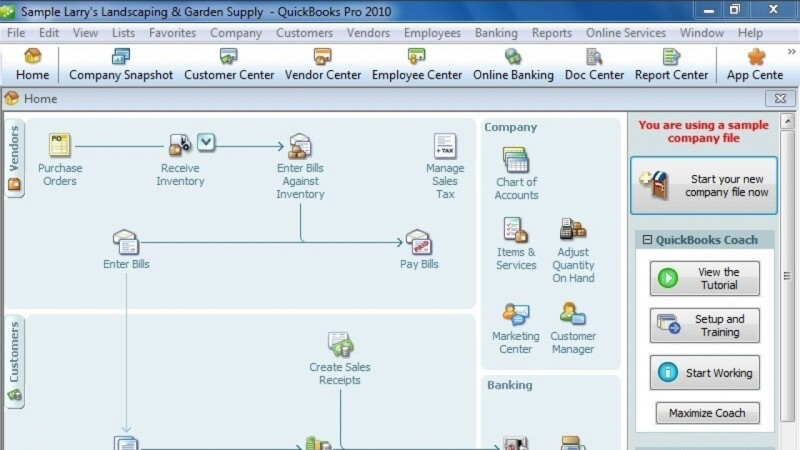
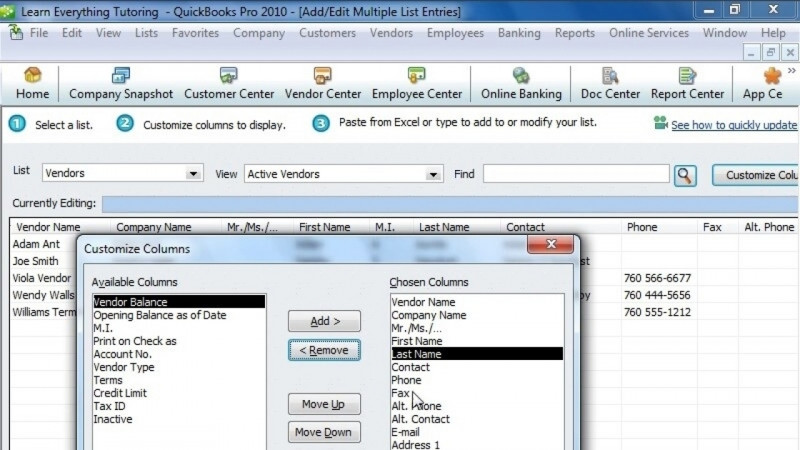
Hello, my name is Takisha Strong, and in these lessons you will learn how to set up your company files in QuickBooks Pro 2022. We will walk through options for product and service-based companies, customize the chart of accounts, and add bank integrations the company may find useful on a daily basis. Let's get started. By this time, you've installed QuickBooks Pro, selected Create Company as an admin, and logged in with your QuickBooks user id. On this screen, I entered the required details for our company LLC, leaving two sections for us to work together, industry and business type. The industry list gives high level options for your company's chart of accounts, the foundation of your accounting file. The chart of accounts give definition to how your company's transactions will be compiled and classified on the financial statements. For purposes of this lesson, we classify industries as either service-based, product-based, or nonprofit. Let's select Help me choose. On this screen, you can search for your industry or scroll the examples of common industries. The industry you select will create accounts for your profit and loss statement, one of the major components of the financial statements. For example, an accounting or bookkeeping company would have income accounts, labeled accounting services income, consulting income, or tax preparation services income. If we scroll down to a nonprofit company, those options change. We now have two sections. The first for direct public support, which would include corporate contributions, gifts in kind, and individual and business contributions, and also indirect public support, such as those from United Way. If we look at those from a restaurant that sells products, we now see an income account labeled food sales and a new section for the cost of goods sold or the cost of that food, which would include food purchases, merchant account fees, and restaurant supplies. Each of the industries also include common expenses, such as advertising, business licenses, insurance, office supplies, and so on. Remember, your exact match may not be listed. Let's say you own a web design company. Typing web in the search bar doesn't provide us with any options. Also, typing design, defaults to a construction or architecture-based business, neither of which would fit your company. In instances such as this, if we scroll to the bottom, we'll see that we also have a general product-based business and a general service-based business. In a moment, we'll review steps to further customize the general accounts to mirror how your company does business. For our company LLC, let's select General Service and press Okay. Let's move to the company's business type. The dropdown menu provides options for business structures. Choosing the correct structure helps in two ways. First, it allows your tax professional to further customize and map your QuickBooks file to the corresponding tax form for your business. And second, it provides the appropriate terminology for another major component of the financial statements, your balance sheet. A sole proprietorship is a business structure operated solely by the individual, typically under their social security number. A partnership or limited liability partnership is owned by two or more people. You have a single member LLC, a multi-member LLC that operates as a partnership for tax purposes, a traditional C corporation, an S corporation, a nonprofit, or you can select other or none to customize this later. For our purposes, let's choose single member LLC, since our company LLC has only one owner. Let's hit Create Company to finish setting up the file. Once the file is set up, we can use the company's section of the homepage to take a look at the chart of accounts. You'll see that it has a basic listing of the accounts that we selected and the general service-based company set up of our file. Stay tuned for the next lesson, where I will show you how to customize this company's chart of accounts. Thanks for watching.